Build van furniture that fits – with its real weight
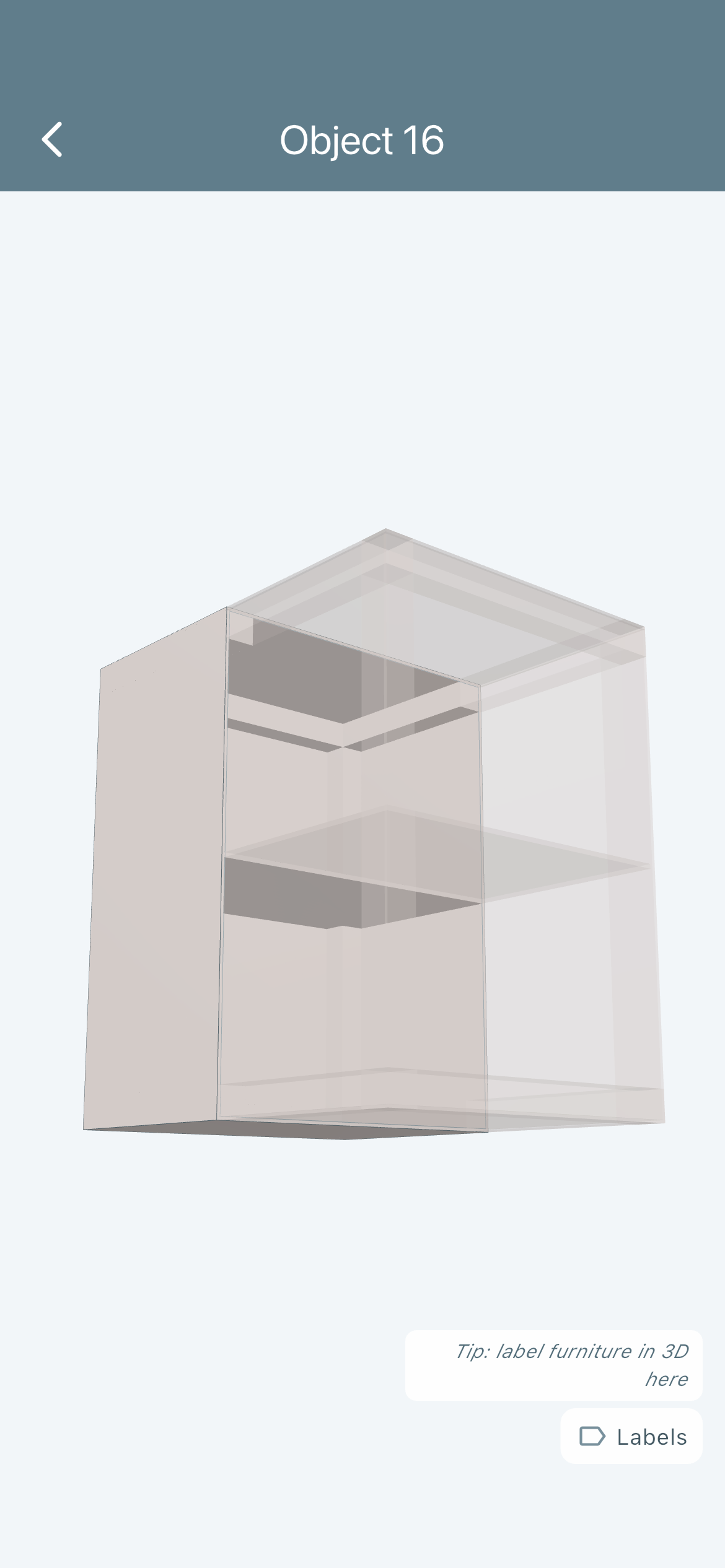
Hardly a wall in a van is straight: the side wall leans inward as it rises, the wheel arch sticks into the room, and in the aisle you bump into every corner. That is why VanLogic plans your furniture in its real shape – with lean, rounding and cutouts – and works out what every part weighs from shape, material and build method. You see collisions with the wheel arch, sliding door and roof taper before you cut anything. In 3D you can look inside every piece of furniture.
Freeform and fronts are free in the app. You can try every Pro feature in Test Mode – with no time limit in the app, for 30 minutes per plan in the browser.
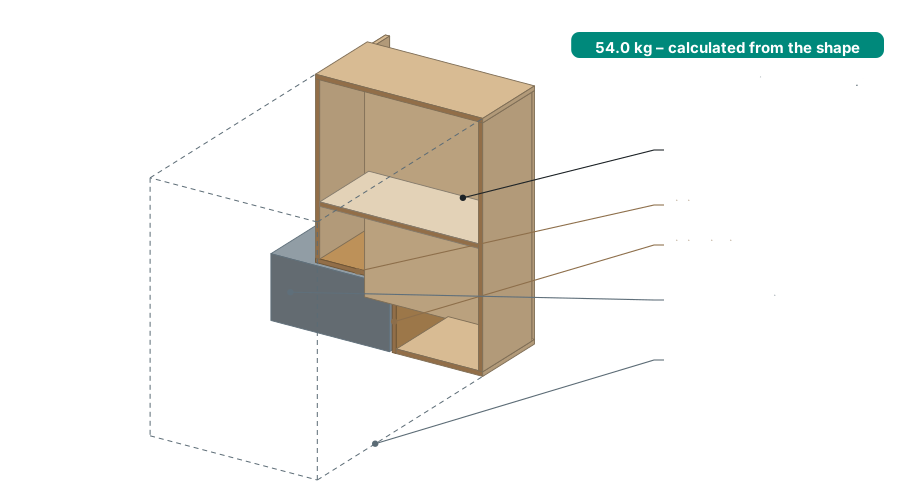
Kitchen unit over the wheel arch, drawn from the app's formulas: cutout, lining, shelf – and the weight that follows from them.
8
build methods, each with its own weight formula
6
starting shapes – and any shape you draw
44
vehicles with wheel arches, sliding door and roof taper
0
kilos guessed – the weight comes from the shape
Why a rectangle is not enough in a van
Most planners only know boxes. In a van, that leads to four mistakes you only notice when you fit the furniture – or when you weigh the van.
The wall is sloped
From window height up, the bodywork draws inward. A wall cabinet planned as a box sits 85 mm inside the wall at the top – or you move it away and lose storage space.
The wheel arch is in the way
In the Ducato/Jumper/Boxer L2H2, each wheel arch sticks 265 mm into the room and is 721 mm long. Furniture above it needs a notch – and that changes the weight.
The aisle is narrow
Between kitchen and bench there are often only 45 cm left. A round corner or a slope behind the swivel seat creates space exactly where you would otherwise bump into things.
The weight is guessed
A flat figure per piece of furniture is quickly ten kilos off. At 3.5 tonnes and with the payload you are legally required to keep free, that decides whether you pass the inspection.
Five steps to a finished piece of furniture
This is how every piece of furniture works in VanLogic, from wall cabinet to bed platform. Each step updates the figure at the bottom of the editor straight away.
1
Choose a shape
Rectangle, L-Shape, Cylinder or Freeform. Freeform starts from six starting shapes – you drag points and type dimensions.
2
Build method and material
Solid, box or Frame + Panelling – and the wood with its real density. Panelling, shelves, front and drawer box can be made of a different material if you like.
3
Fit it to the van
A cutout for the wheel arch and the like, lean walls for the bodywork, round corners for the aisle.
4
Fit it out
Shelves, drawers and doors on every edge. Leave out panels where the vehicle wall is the back wall.
5
Check
Weight, axle load and centre of gravity live. Collisions with the vehicle and with other furniture. 3D with X-ray and section. Material list for cutting.
Freeform: draw the shape you build
With Freeform, a piece of furniture is no longer a box but the outline you actually cut. Weight, centre of gravity, collisions, 2D plan, 3D and material list all work with exactly this shape.
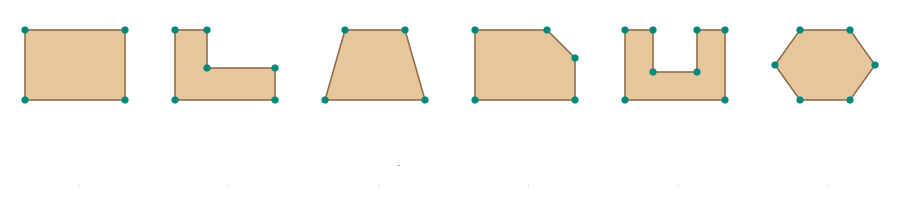
The six starting shapes. Every point can be dragged, every edge moved.
How to draw a Freeform
In the object editor, tap "Freeform" under the shape, then "Edit outline".
Pick a starting shape – Rectangle, L-Shape, Trapezoid, Chamfered corner, U-shape or Hexagon.
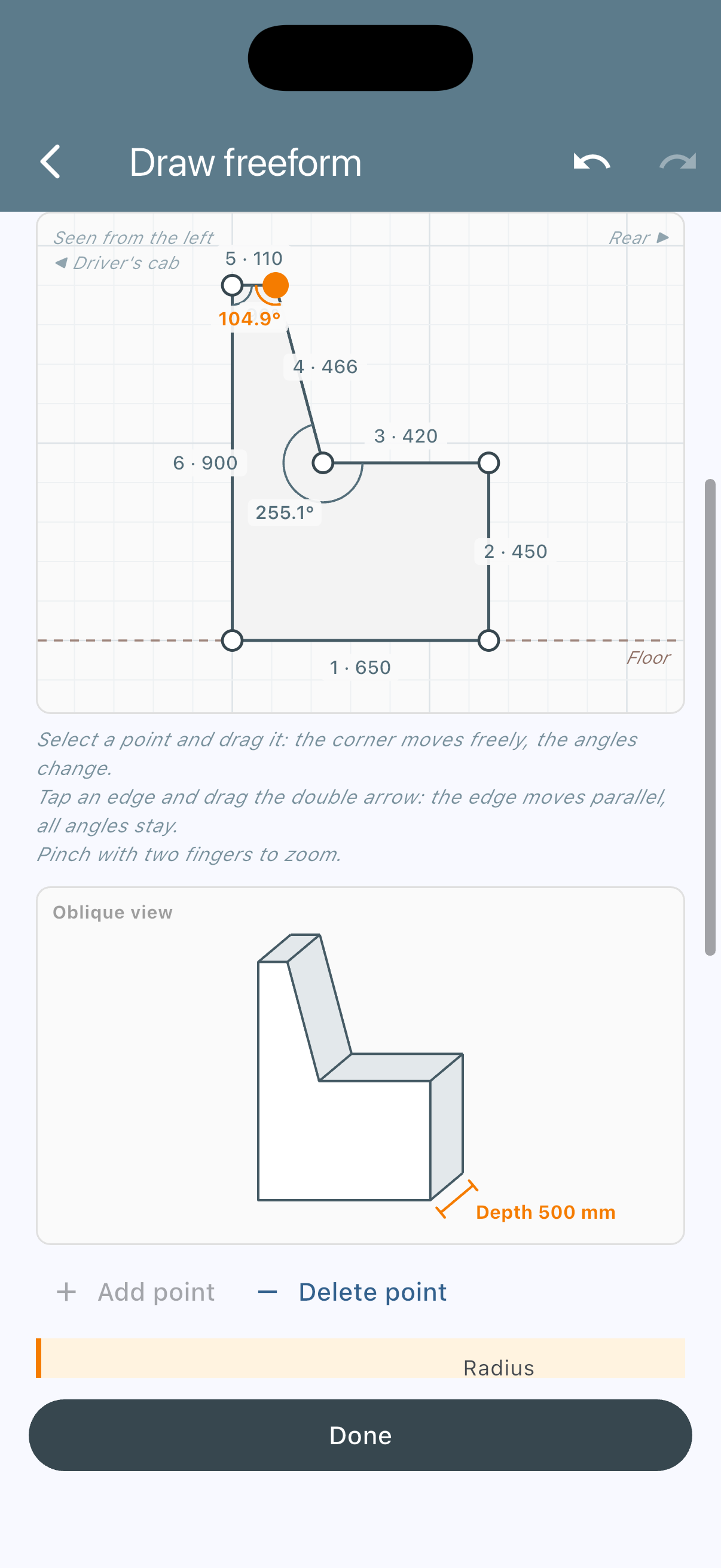
Drag points or tap an edge and move it in parallel with the double arrow. With "Grid & right angles", points snap to a 10 mm grid and to right angles.
Type dimensions: the list "Edge 1 …" shows every edge length. You type the length, the angles stay. At the selected point, the app shows the angle.
"Done" – the shape is in your plan. Undo and redo are available on the screen.
3 to 16 points, edges from 20 mm. If you drag width or length in the editor, the outline grows with it.
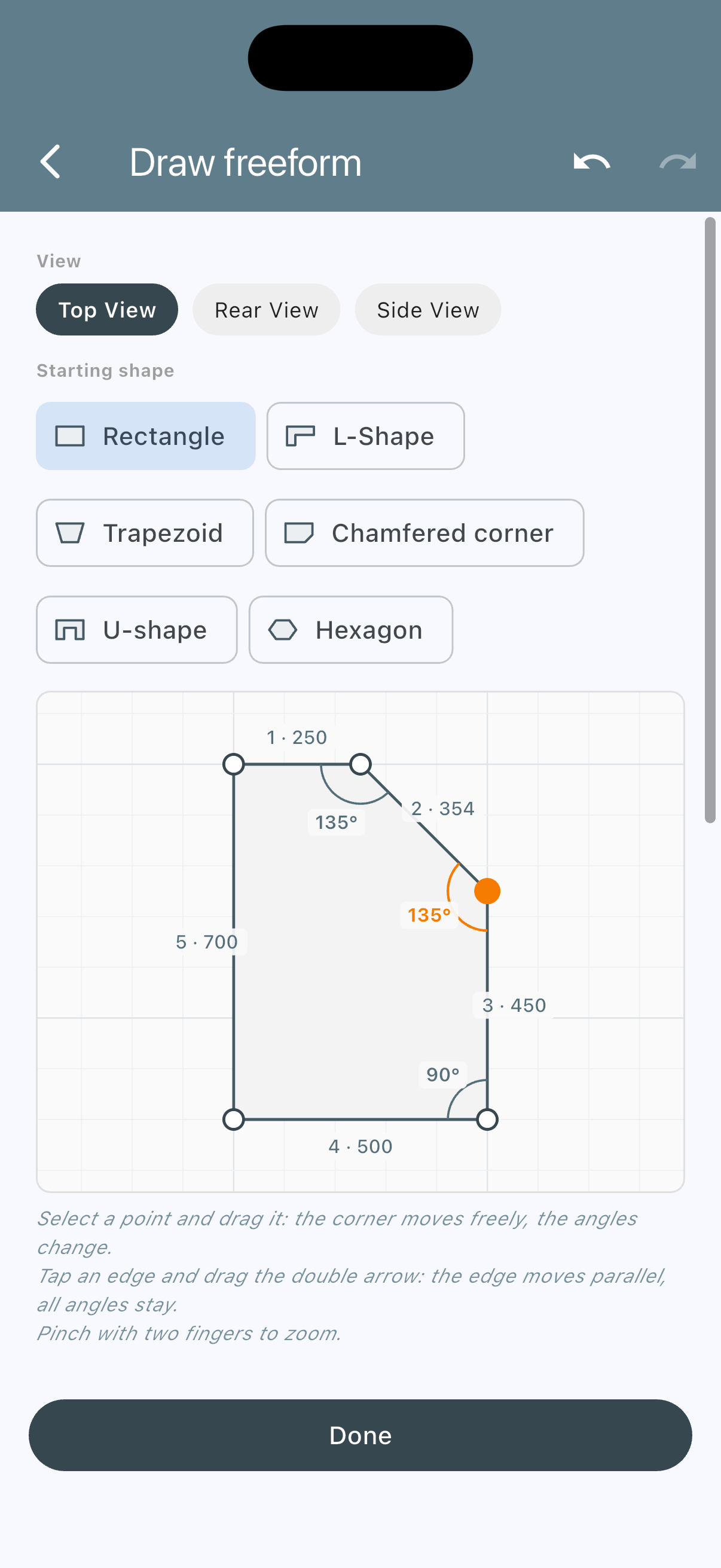
This is what it looks like in the app: "Draw freeform" with the edge list and angles.
The tools
Lean per edge
Pro
Every wall gets an angle of up to ±45°. Plus means: inward at the top, like the bodywork. The app shows how far the top edge moves, plus an oblique view.
Rounding per corner
Pro
Tap a point, type the radius. Below it you see how large it may be at most. The arc ends up in the material list.
Top View, Rear View or Side View
Pro
Some furniture is easier to draw from the side: the bench with a sloped backrest, the platform with a step. You draw the shape and enter the depth.
Cutouts
Pro
From above for the wheel arch or into a wall for cables and ventilation, square or round, with lining.
Leave out panels
Pro
Base, top or individual walls are left out – for example the back wall, if the vehicle wall takes its place.
Fronts on every edge
Free
Drawers and doors on every straight, vertical edge, including the large side-hinged door for a WC cubicle. The front replaces the wall it covers.
Free: Freeform in the top view and fronts (one drawer and one door per edge). Pro: lean, rounding, rear and side view, cutouts, leaving out panels.
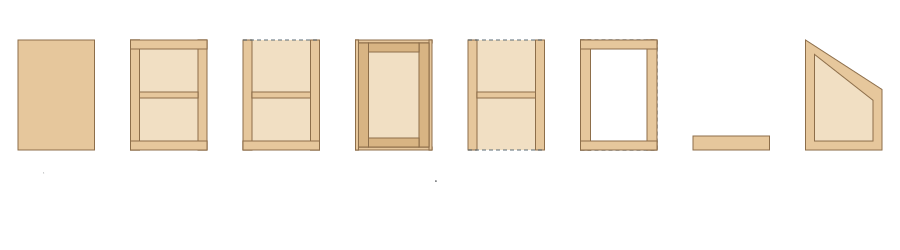
Eight build methods – and each weighs what it is built from
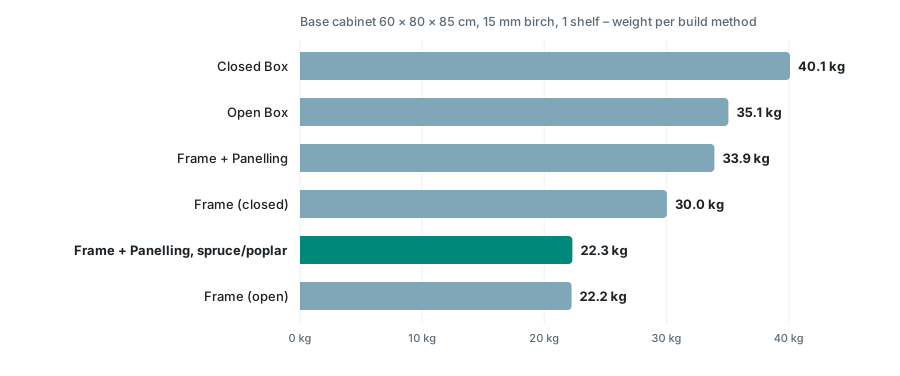
The same base cabinet, 60 × 80 × 85 cm, 15 mm birch plywood, one shelf. Dimensions and wood stay the same, only the build method changes:
Same dimensions, up to 44% less weight. As a Solid Block, the same cabinet would weigh 285.6 kg – which is why it is not in the chart. Solid is meant for cushions, blocks and small parts. With eight pieces of furniture in the van, the difference between Closed Box and Frame + Panelling in spruce and poplar adds up to around 142 kg – as much as two passengers weigh.
Build method
Typical for
What is calculated
Solid Block
cushions, mattress, blocks
volume × density
Closed Box
cabinet with a top, seat box
base, top and walls as panels
Open Box
box without a top, drawer
as above, without the top
Frame + Panelling
the most common van build method
stud frame plus thin skin, each with its own material
Frame (closed)
bed base, box frame
four walls, no base, no top
Frame (open)
shelf frame
posts and rings, adjustable strut thickness
Single Panel
worktop, wall panelling
area × thickness × quantity
Slanted Box
cabinet under the roof taper
the top slopes down towards the back, the walls follow
Each example with the dimensions you type and the figures VanLogic calculates from them. All values come from the same formulas as in the app.
Cutout
Kitchen unit over the wheel arch
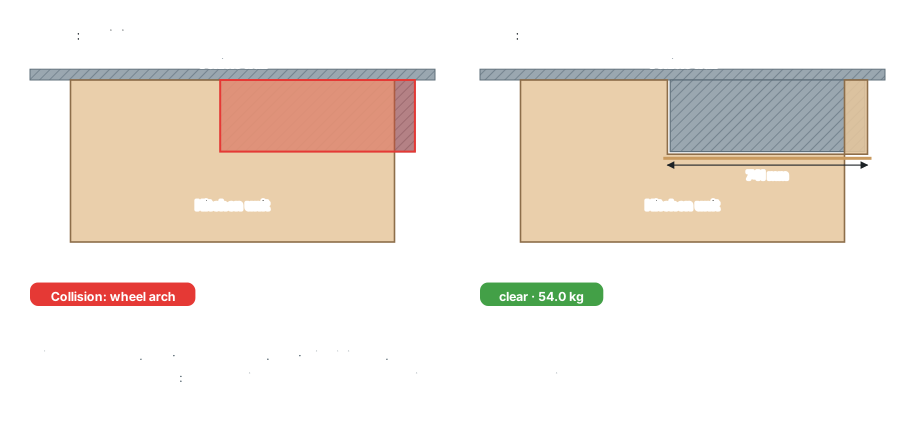
The kitchen should run along the left wall – exactly where the wheel arch is. In the Ducato/Jumper/Boxer L2H2 it is 265 mm wide, 721 mm long and 220 mm high.
Left the collision, right the cutout with lining – wheel arch in its real position in the Ducato/Jumper/Boxer L2H2.
How it works in the app
Create the kitchen block as a Closed Box: 60 × 120 × 85 cm, 15 mm birch plywood, one shelf.
Slide it over the wheel arch – VanLogic reports the collision.
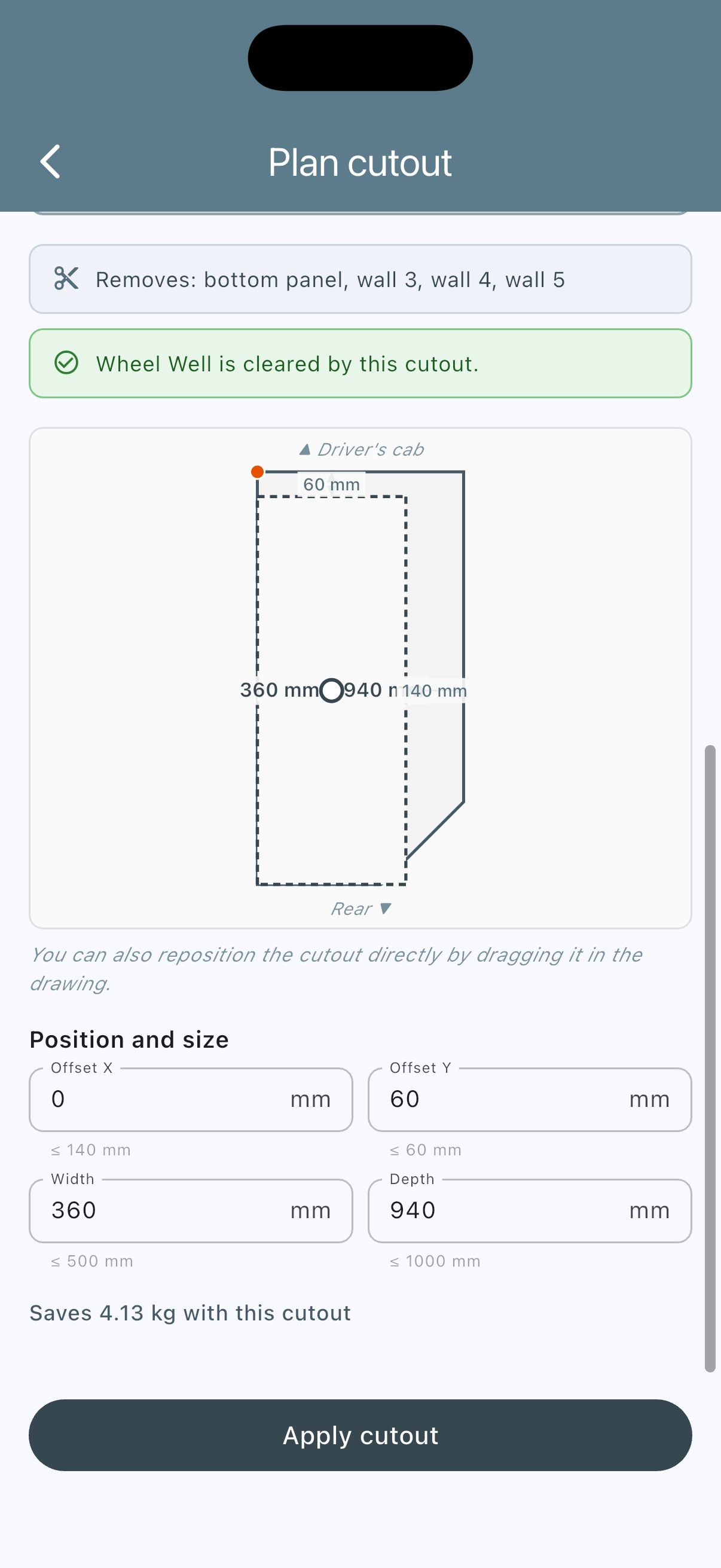
Tap the warning, then "Add/edit cutout": position and size are already filled in from the overlap – 275 mm × 741 mm, 230 mm high, with 10 mm of clearance.
Switch on the lining on the cut faces. That way the box stays closed all round.
Result
The warning disappears as soon as the wheel arch is clear. Without lining, a piece of the base and of the wall drops out, 4.11 kg lighter. With lining, the new panels are added: 54.0 kg instead of 54.8 kg. VanLogic calculates both from the geometry – not as a flat "minus ten percent for the wheel arch".
In the app: "Plan cutout", pre-filled from the warning.
Lean
Wall cabinet on the sloped side wall
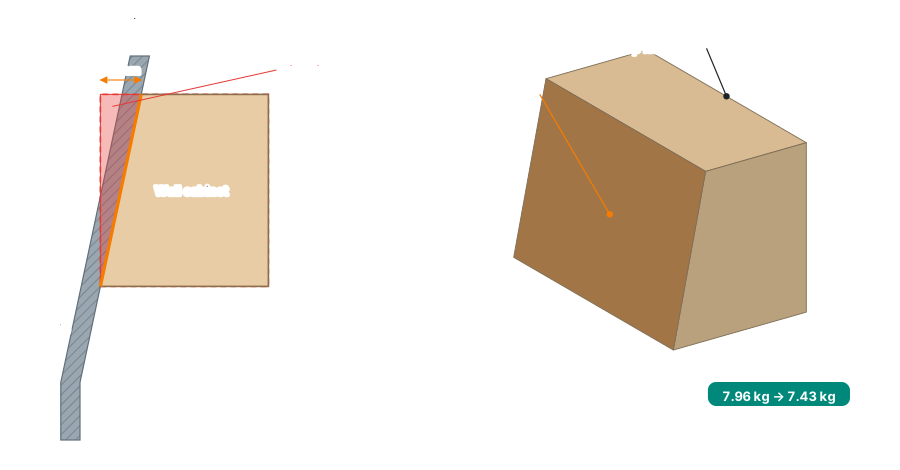
Hold a plumb line against the side wall of a panel van: a gap opens at the top. A wall cabinet that touches the wall at the bottom hits it at the top – or it hangs with a gap and wastes space.
Left, seen from behind: the rectangle sticks into the wall, the leaning wall fits. Right, the cabinet in 3D.
How it works in the app
Freeform, starting shape Rectangle: 35 × 60 cm, 40 cm tall, Closed Box made of 15 mm poplar plywood.
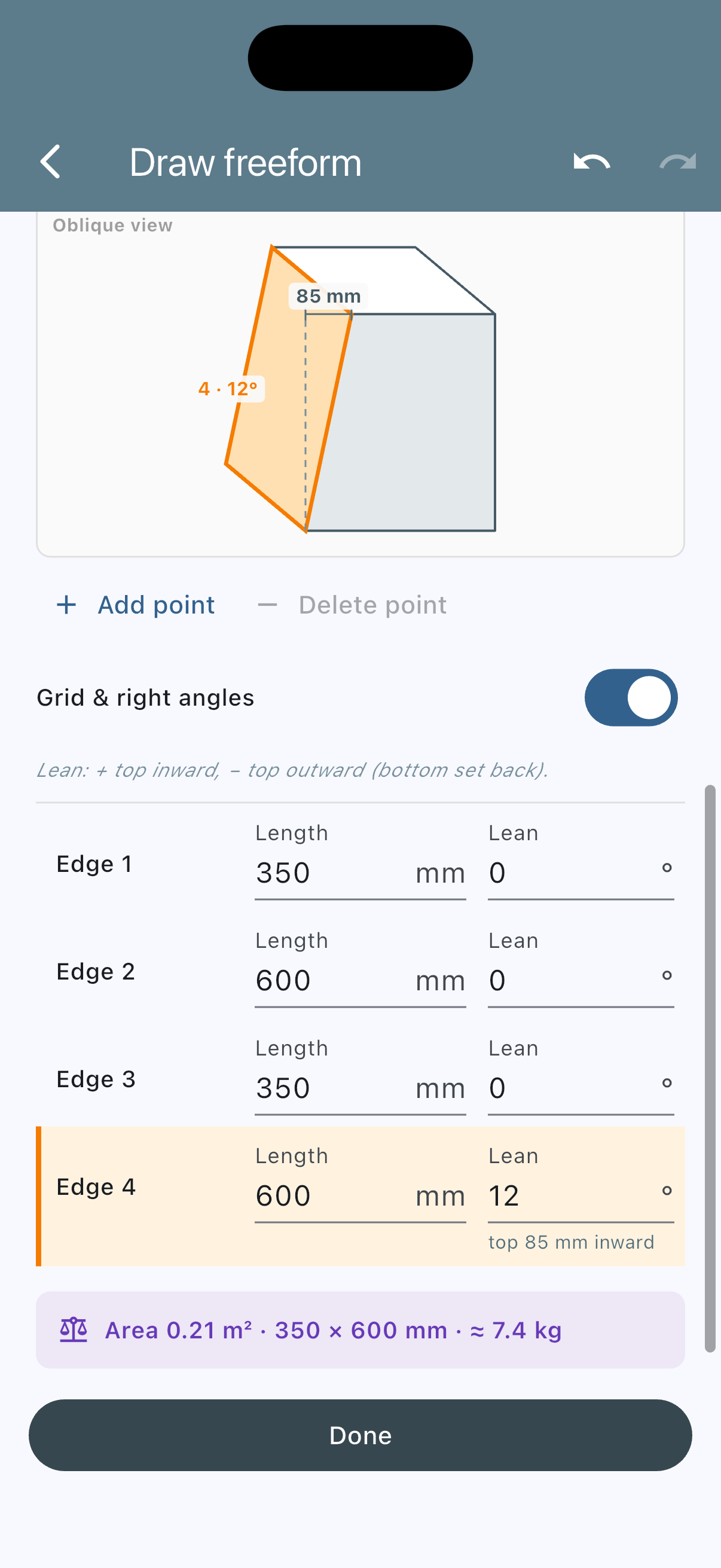
Tap the edge facing the vehicle wall, "Lean" 12°. Below it you see "top 85 mm inward", and the oblique view shows the leaning wall in orange.
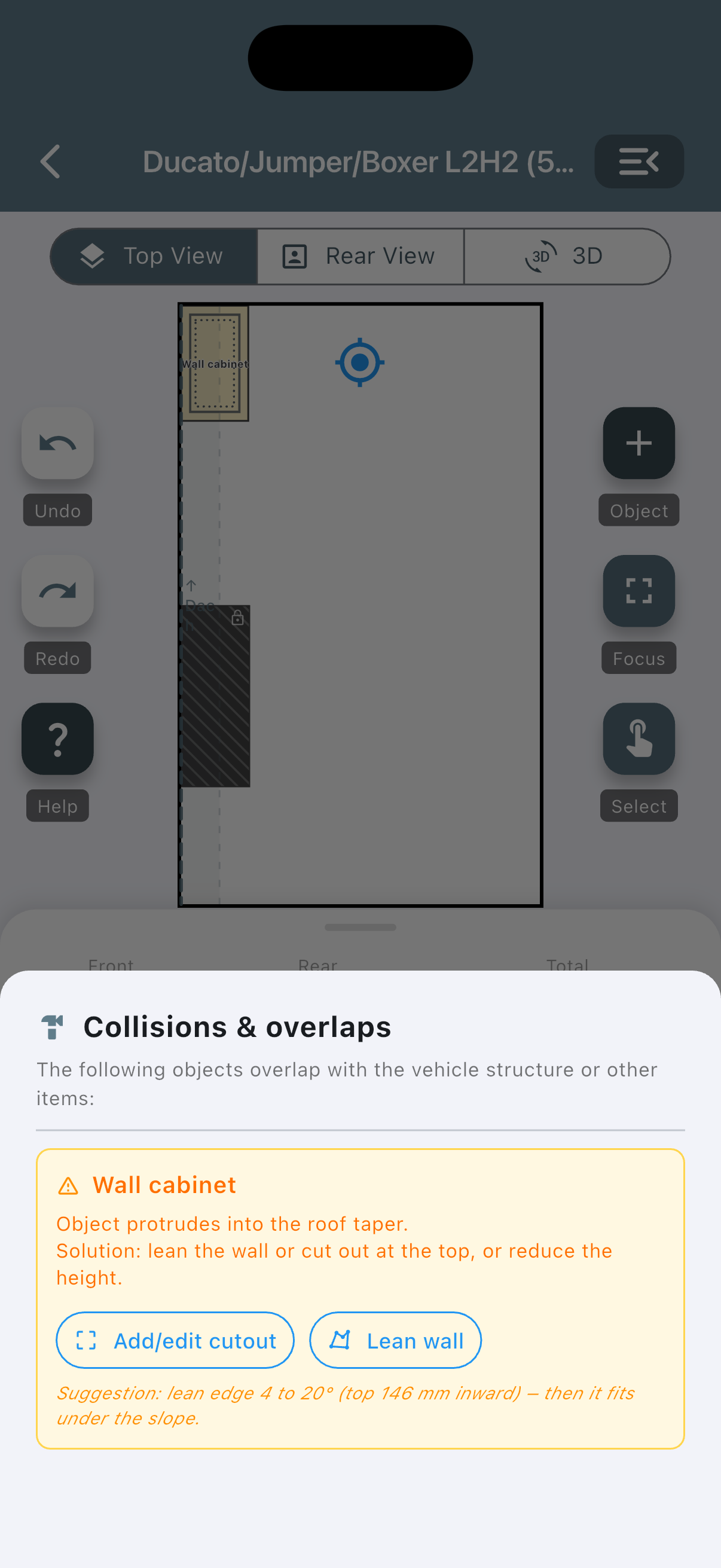
Or quicker: if the cabinet sticks into the roof taper, the collision warning offers "Lean wall" – with the smallest angle that fits.
Result
The cabinet sits against the wall over its full height. Because the top gets narrower, it weighs 7.43 kg instead of 7.96 kg – calculated from 1.100 m² of panel area instead of 1.180 m². The half kilo is not the point. The point is that it fits.
"Lean" per edge, with oblique view.
"Lean wall" straight from the collision warning.
Rounding
Worktop with a round corner at the aisle
Between bench and kitchen block, 45 cm of passage is enough. But right at the narrowest point there is usually a corner – the one you bump into every day.
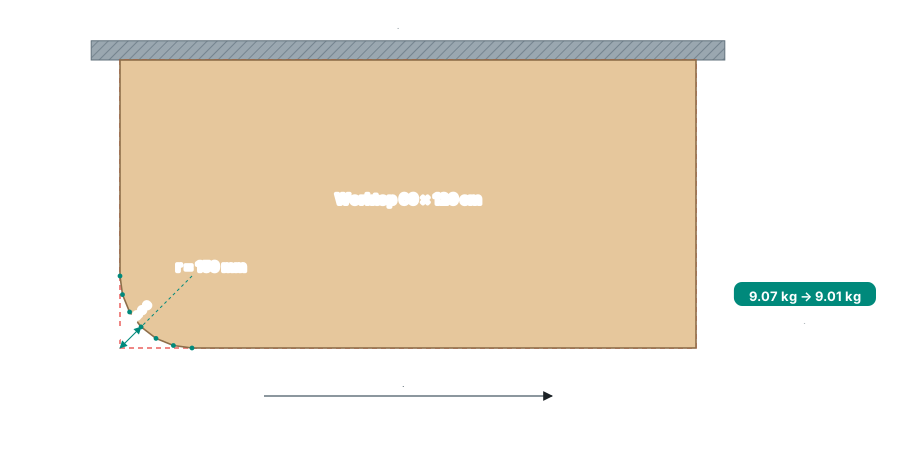
Dashed the sharp corner, filled the panel with a 150 mm radius.
How it works in the app
Freeform, starting shape Rectangle: 60 × 120 cm, build method Single Panel, 18 mm birch plywood.
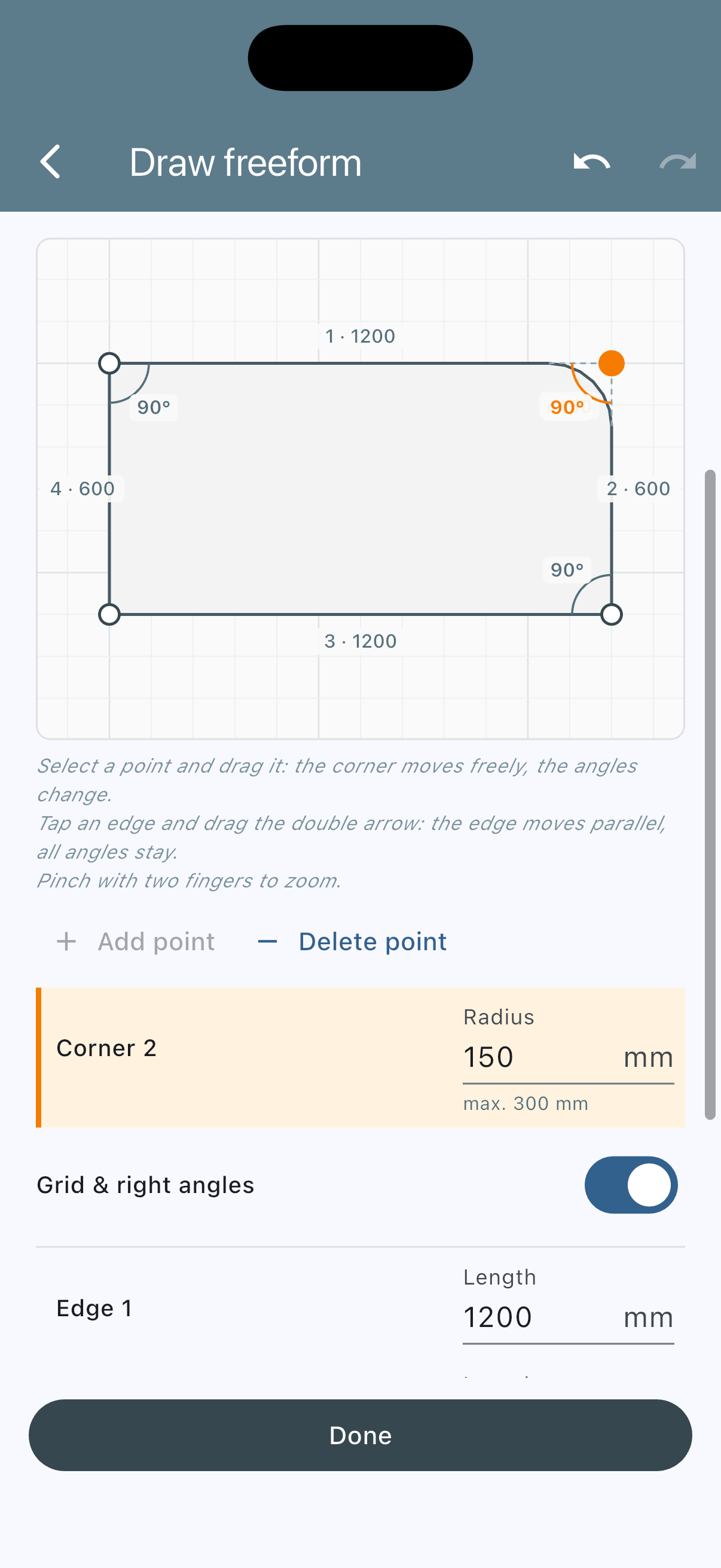
Tap the corner point at the aisle. Below the drawing, "Corner 2" appears with the field "Radius": 150 mm. "max. …" shows how large it may be.
Result
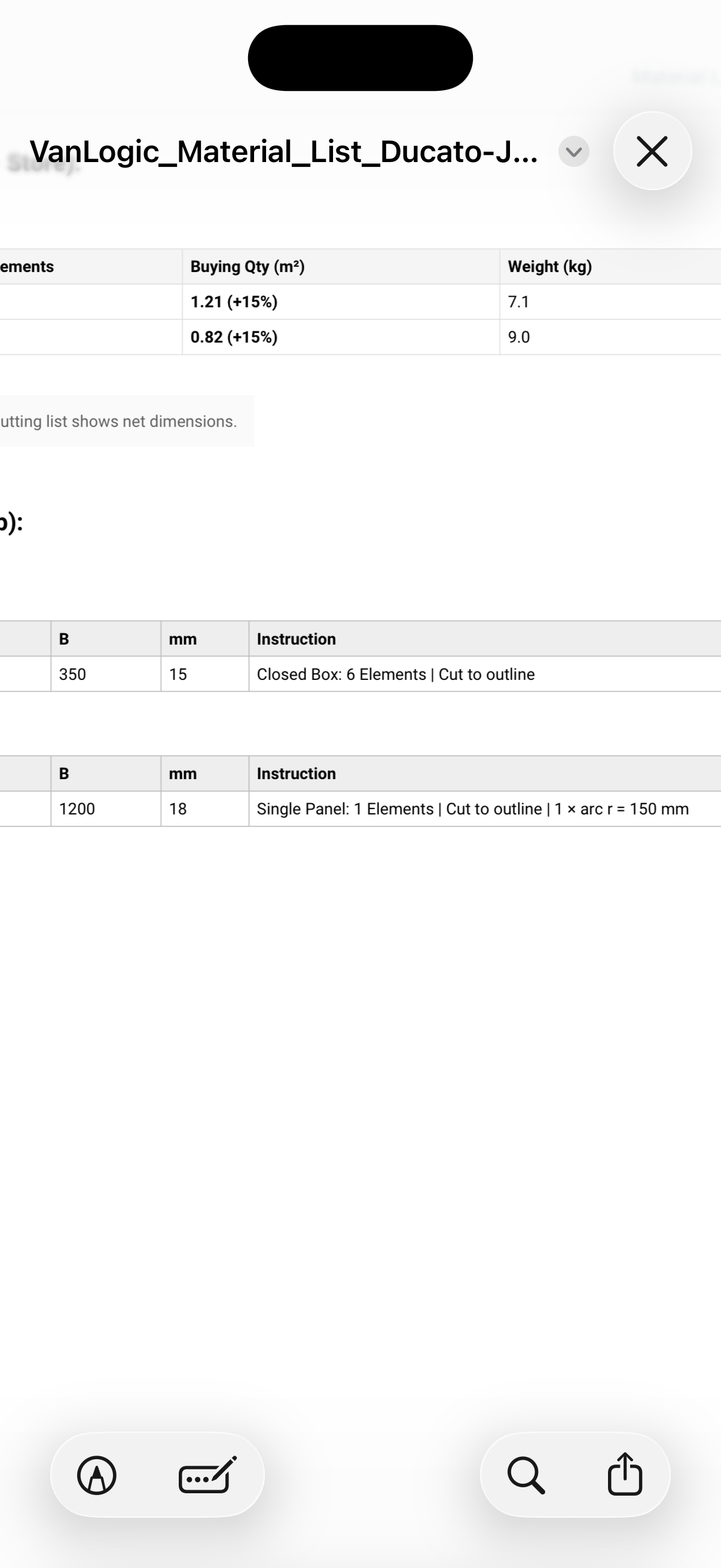
Diagonally, the corner frees up 62 mm of space and costs 63 g of panel: 9.01 kg instead of 9.07 kg. The material list shows the arc ready for cutting: "Cut to outline | 1 × arc r = 150 mm".
Radius per corner, with an upper limit.
The arc in the material list.
Freeform
Cabinet behind the swivel seat
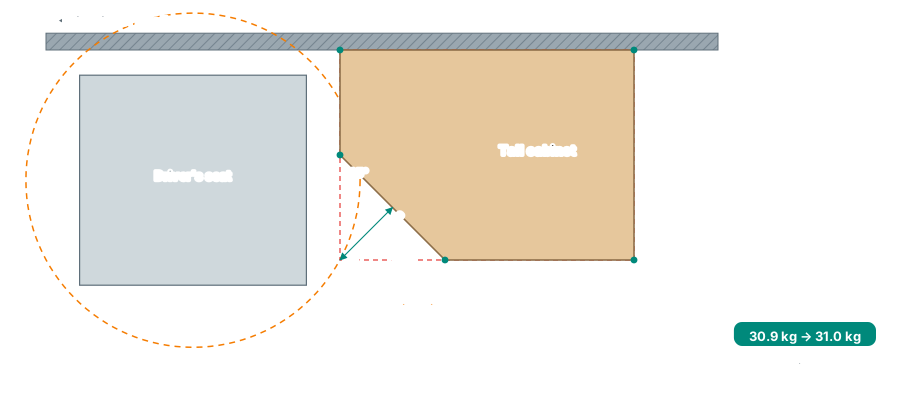
With a swivel base, the driver's seat turns towards the living area. For that, the backrest needs 25 to 35 cm behind it. A tall cabinet right behind it therefore gets an angled corner towards the aisle.
The swing circle of the backrest and the angled corner of the cabinet.
How it works in the app
Freeform 50 × 70 cm, 150 cm tall, Frame + Panelling: spruce battens, 5 mm poplar as the skin, three shelves.
Add a point on the front edge and drag the corner at the aisle back by 25 cm – at both ends of the slope the app shows 135°.
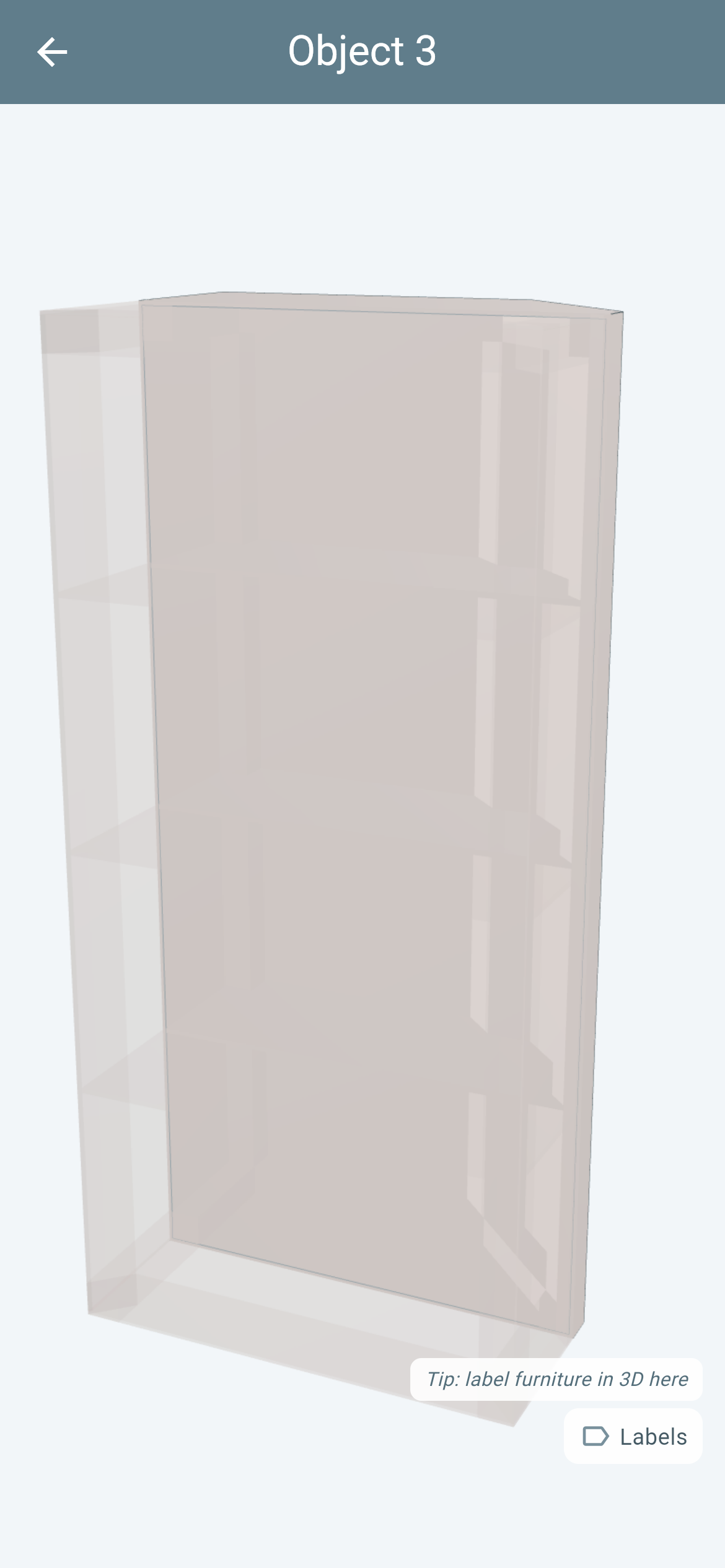
Check it in the 3D construction view: stud frame, skin and shelves follow the slope.
Result
The slope frees 177 mm of space for the backrest. Base, top and shelves are 9% smaller – in return, the slope gets a fifth corner post. All in all 31.0 kg instead of 30.9 kg: almost the same. Exactly as you build it.
The outline in "Draw freeform".
The same cabinet in the 3D construction view.
Side View
Bench with a sloped backrest
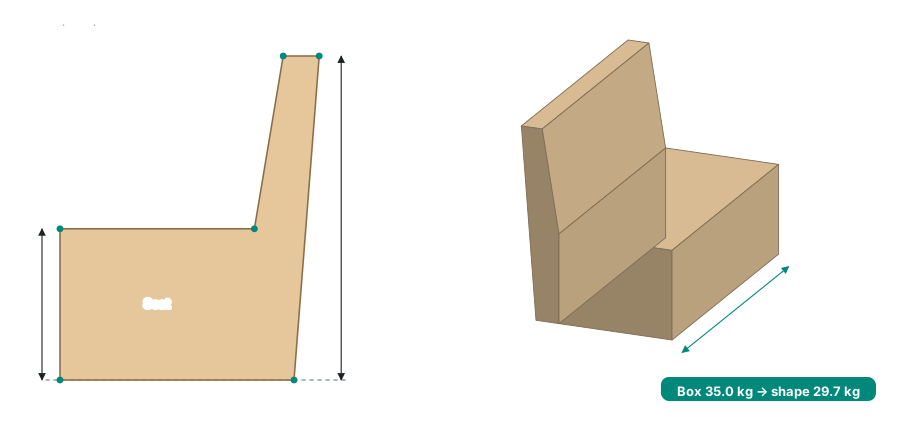
From above, a bench with a sloped backrest is a rectangle – you only see its shape from the side. Planned as a box, it counts material above the seat that does not exist.
Drawn from the side, extended over the depth.
How it works in the app
In "Draw freeform", choose Side View under "View".
Draw the bench from the side: seat 42 cm high, backrest sloping back up to 90 cm.
Enter a "Depth" of 120 cm – that is how wide the bench is. Build method Closed Box, 15 mm poplar.
Result
The bench weighs 29.7 kg instead of 35.0 kg as a box – 5.32 kg less. The collision check also works with the real body: there is room above the seat, for a window shelf or a rack, for example.
The bench in the side view.
Leave out panels
Overhead cabinet without a back wall
Against the vehicle wall, an overhead cabinet does not need its own back wall – the wall is already there. Planned as a full box, the weight includes a panel you never buy.
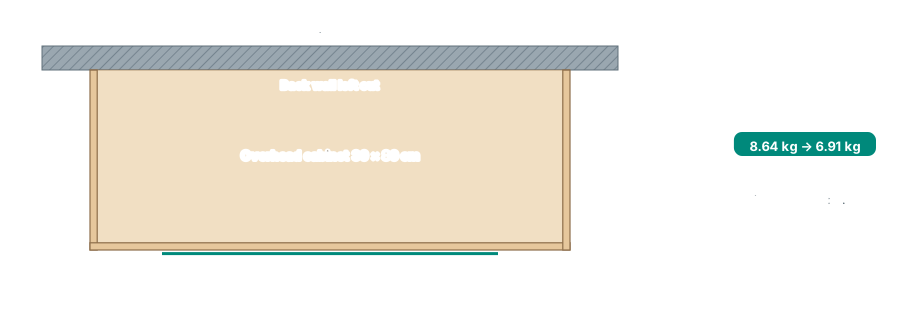
The left-out wall is a thin line, the doors sit on the aisle side.
How it works in the app
Closed Box 30 × 80 × 40 cm, 12 mm poplar, one shelf.
Under "Panels", tap the wall facing the vehicle wall – it is left out.
Under "Fronts", two doors on the aisle side.
Result
Without the back wall, the cabinet weighs 6.91 kg instead of 8.64 kg. The doors replace the wall they cover – with two doors it stays at 6.91 kg. In the 2D plan, the missing wall is a thin line, just like in a construction drawing.
Cutouts: material goes where the vehicle is
A cutout is an invisible block you push into the furniture. Where it hits material, the material disappears. Where it runs through a hollow space, nothing happens. The weight is calculated exactly the same way.
From above or into a wall: in the floor plan for the wheel arch and floor openings, in a wall for ventilation grilles, cables or a fuel filler.
Square or round – and free in height: all the way through, only at the bottom, only at the top or a range of your own.
Lining: the cut faces get panels, the furniture stays closed – and the panels are included in the weight.
"Removes: …" shows which panels are hit and how many kilos the cutout saves.
With Frame + Panelling, the struts that are hit count as well.
For every shape: Rectangle, L-Shape, Cylinder and Freeform – on a sloped wall too.
Suggested: from the collision warning, the cutout is already filled in.
Collision check: see mistakes before you cut
Every vehicle in VanLogic comes with its structure. When you place furniture in it, the app checks straight away whether it sticks into anything – and suggests how to make it fit.
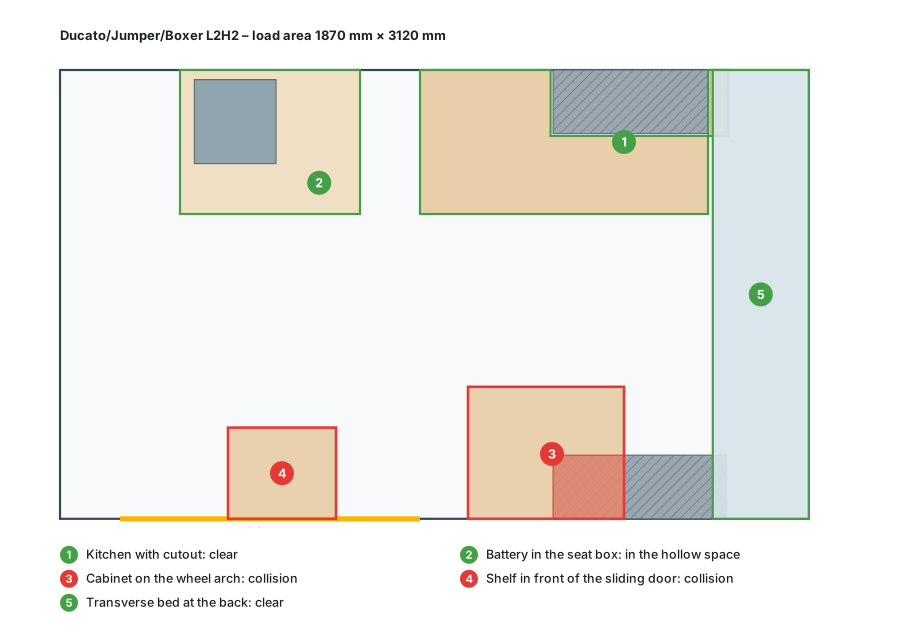
Schematic in the Ducato/Jumper/Boxer L2H2: green clear, red collision.
Furniture against furniture: real overlap in all three directions, small touches at the edges do not count.
Real shape: for L-Shape, Freeform and Cylinder, the outline counts, not the rectangle around it. VanLogic checks leaning walls against the real body.
Hollow spaces: the battery in the seat box is not a collision – the app recognises that it sits in the interior.
Two fixes at a tap: "Add/edit cutout" with pre-filled dimensions and, at the roof taper, "Lean wall" with the smallest angle that fits.
In the free version you see that something collides. What exactly – and the fixes – is shown with Pro.
Look inside every piece of furniture in 3D
The 3D model is built from the same data as the weight. What you see in 3D is what gets weighed.
Realistic
The whole build in the vehicle – rotate, zoom, look at it from inside.
X-ray
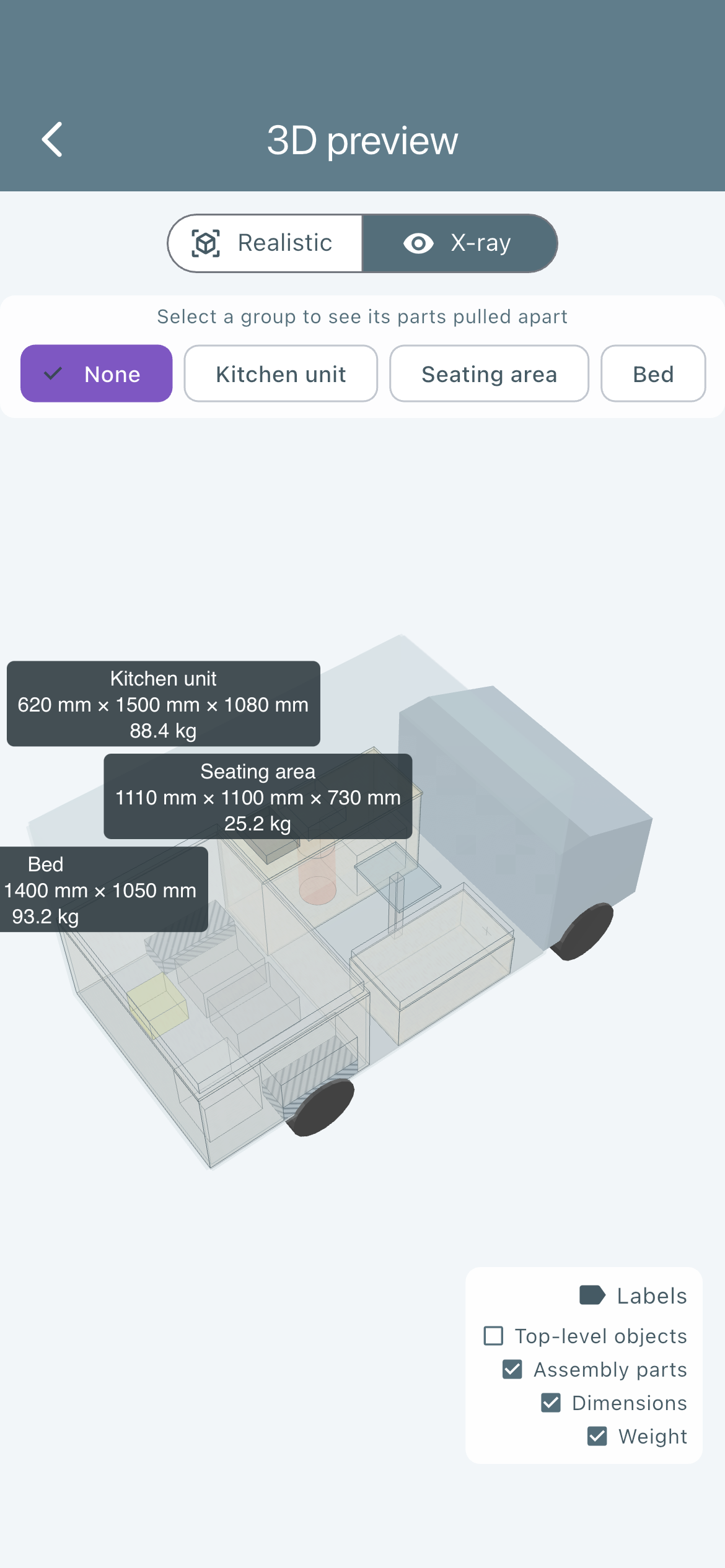
All furniture turns transparent, the vehicle stays solid. You see what is behind the worktop.
Exploded view
An assembly is pulled apart, every part in its own colour with a legend.
3D construction view
Straight from the object editor: just this piece of furniture, cut open. Wall thickness, shelves and stud frame are exposed, the near half stays visible as a ghost.
Labels
Names, dimensions and weight right on the furniture.
3D construction view: cut open, with stud frame.
X-ray: see through the furniture.
Frame + Panelling in 3D.
3D is Pro – you can try it out in Test Mode.
How VanLogic calculates the weight
No flat figure, no table saying "cabinet = 30 kg". Every piece of furniture is calculated like a cutting list: panel area × thickness × density, part by part.
Panels from the real shape: base and top from the area of the outline, walls edge by edge, leaning ones with their sloped length.
Stud frame: one post at every corner and rings at the top and bottom, adjustable strut thickness.
Separate materials: panelling, shelves, front and drawer box can be made of a different wood than the carcass.
Fronts: the front replaces the wall it covers. A drawer is 20 cm high, a door fills the remaining height.
Cutouts and left-out panels deduct exactly what is missing.
Appliances such as fridge, toilet or battery carry their weight from the catalogue.
Centre of gravity from the real shape: from that follow the front and rear axle loads, the left/right distribution and the tipping risk.
Quick check
As a Closed Box, the base cabinet above has 3.82 m² of panel area, shelf included. 15 mm birch plywood weighs 10.5 kg per m². That makes 40.1 kg – exactly the value the app shows.
The material list (PDF and CSV) sums up the areas per material, with cutting notes such as "Cut to outline" and "1 × arc r = 150 mm". From all the furniture you get the inspection report with axle loads and the legally required remaining payload.
Why VanLogic leads when it comes to building furniture
Other planners draw furniture – or calculate weight. VanLogic combines both for each individual piece: shape, build method, material and cutouts together give the weight, and the collision check knows your vehicle.
VanLogic
Other planners*
Weight per piece of furniture calculated automatically from the material
yes, from the real shape
1 of 4
Build methods with their own weight formula
8
1 at most
Collision check against wheel arch, sliding door and roof taper
yes
1 of 4
Axle load and centre of gravity live
yes, both
1 of 4
App for iOS and Android
yes, plus browser
none
Plan offline
yes
none
And only VanLogic has all of this together
Freeform with lean per edge and rounding per corner
Draw the shape from behind or from the side
Cutouts with lining – and the weight is still correct
"Add/edit cutout" and "Lean wall" straight from the collision warning
Leave out panels, fronts on every edge
3D construction view with section in the object editor
* The four planners from our camper planner comparison, checked on their websites, as of 23 Sep 2026.
Frequently asked questions about building furniture
Can I plan any piece of van furniture with VanLogic?
Almost any made of panels, battens or solid material: cabinets, kitchen units, seat boxes, bed platforms, shelves, panelling. Freeform covers sloped walls, round corners and shapes seen from the side; you combine several parts into one piece of furniture as an assembly. Real curves in the height, such as curved fronts, are not possible.
How accurate is the calculated weight?
As accurate as your input. VanLogic calculates panel area × thickness × density, part by part, from the real shape. Hardware, screws and glue are not in the formula – you add them as a separate component. We checked the formula against an independently calculated cutting list.
How do I build a cabinet around the wheel arch?
Slide the furniture over the wheel arch, tap the collision warning and choose "Add/edit cutout". Position and size are pre-filled from the overlap. With lining, the box stays closed. Alternatively, you draw the outline as a Freeform with a notch around the wheel arch.
How do I plan a wall cabinet on the sloped side wall?
As a Freeform: the edge facing the vehicle wall gets a lean, typically 8 to 15 degrees. How much your wall draws inward is best measured yourself with a plumb line and a folding rule. If the cabinet sticks into the roof taper, the "Lean wall" warning suggests the right angle.
Which build method is the lightest for van furniture?
For cabinets, usually Frame + Panelling: a stud frame made of battens with a thin skin, for example 5 mm poplar. The same base cabinet then weighs 22.3 kg instead of 40.1 kg as a Closed Box. Only an open frame is lighter still – but then it has no walls.
Can I see my furniture in 3D?
Yes. Besides the 3D view of the whole build, the object editor has the 3D construction view: just this piece of furniture, cut open, with wall thickness, shelves and stud frame. 3D is a Pro feature.
What is free, what is Pro?
Planning, weight, axle load, the collision warning, Freeform in the top view and fronts are free. Pro includes all build methods, lean, rounding, rear and side view, cutouts, leaving out panels and 3D, among other things. You can try all of it in Test Mode.
Can I try it in the browser?
Yes, the web app is the real VanLogic app. In the browser you plan in Test Mode with every feature, including the Pro ones – 30 minutes per plan, as often as you like; the clock only runs while you work. After that the plan stays saved but locked. You keep it with the app: Pro also unlocks your browser.
Build your first piece of furniture – free in your browser
The web app is the real VanLogic app, with no account and no installation. In the browser you try everything on this page in Test Mode – 30 minutes per plan, as often as you like. In the app, Freeform, fronts, weight and the collision warning are free.